Two months ago, I switched to DogeCloud CDN because Tencent Cloud CDN does not support immediate suspension of service upon arrears.

But!
Currently, free SSL certificates from Baota/1Panel are valid for only 90 days. Although they can be automatically renewed, you still need to frequently manually update the CDN certificate after renewal, which is very troublesome.
Fortunately, DogeCloud provides corresponding APIs, allowing us to automatically sync SSL certificates to DogeCloud CDN via scripts.
Features
- 🔑 Dynamically generate DogeCloud API access token
- 📤 One-click certificate upload and management
- 🌐 Smart certificate binding for multiple domains
- 🗑️ Old certificate cleanup (optional)
- ⏰ Seamless integration with Let's Encrypt auto-renewal
- ✅ Dual platform support (Baota/1Panel)

Quick Start
- Obtain DogeCloud API keys:
- Log in to the DogeCloud console
- Go to "User Center" → "Key Management"
- Create a new key pair
- Confirm certificate paths:
- Baota Panel:
/www/server/panel/vhost/ssl/domain directory/ - 1Panel can be skipped
- Baota Panel:
Configuration Guide
Edit the following parameters in the script:
Deployment Guide
1Panel
- Enter the certificate management interface
Create/Edit certificate:
- Enable "Auto Renewal"
- Enable "Push certificate to local directory"
- Select a directory
- Enable "Execute script after application"
- Paste the script content
- Modify the certificate paths to:
Shell# 证书路径 FULLCHAIN_PATH="./fullchain.pem" PRIVKEY_PATH="./privkey.pem"

1Panel Certificate Settings
Baota
- Create a scheduled task:
- Task type: Shell script
- Task name: as you wish
- Execution period: once at 01:30 on the 1st of each month
- Execution user: root
- Script content: paste the script content

Baota Scheduled Task
- By combining with the scheduled task for Let’s Encrypt certificate auto-renewal
/www/server/panel/pyenv/bin/python /www/server/panel/class/acme_v2.py –renew=1, theoretically you can achieve hands-off management of DogeCloud CDN certificates.
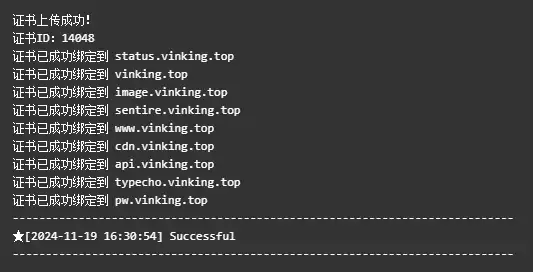
After saving, execute the task once. If the following information is displayed, it means the certificate synchronization is complete:
Code Logic
Get Keys & Generate AccessToken
DogeCloud's API has an authentication mechanism. You need to obtain the AccessKey and SecretKey from the Key Management in the console before use, and then generate an AccessToken from the AccessKey and SecretKey.
The process of generating AccessToken is to concatenate the request path and request body, then encrypt them using SecretKey with HMAC-SHA1, and finally join the resulting encrypted value with AccessKey using a colon. For the specific generation algorithm, refer to the documentation Authentication Mechanism .
After generating the AccessToken, you only need to add Authorization: TOKEN <AccessToken> in the request header to pass authentication.
Locate Baota's Domain Certificate & Upload Certificate
Under the /www/server/panel/vhost/ssl/ directory, you can find all Baota folders named after domains. The folder contains the fullchain certificate fullchain.pem and private key privkey.pem corresponding to that domain.
It is recommended to use the same wildcard certificate for the domain and all its subdomains, so that certificate synchronization for the domain and all its subdomains can be completed in one go.
Taking the domain vinking.top as an example, the directories of the fullchain file and private key file are as follows:
FULLCHAIN_PATH="/www/server/panel/vhost/ssl/vinking.top/fullchain.pem"
PRIVKEY_PATH="/www/server/panel/vhost/ssl/vinking.top/privkey.pem"
After obtaining the domain certificate, you need to submit the certificate content to https://api.dogecloud.com/cdn/cert/upload.json via POST. After a successful upload, you need to obtain the certificate ID to bind the certificate just uploaded to the domain.
Refer to the documentation Upload Certificate 、 Bind Certificate .